
From Localhost to Cloud: How to Deploy FastAPI on Zoho Catalyst
Published on January 20, 2025
Background
While developing a product for the Zoho Marketplace, we explored various cloud services to leverage within the ecosystem and discovered Zoho Catalyst. To test its capabilities, we deployed a Dockerized backend project, and the experience was notably smooth.
If you are looking to migrate a local project to the Cloud, here is a step-by-step guide to deploying FastAPI on Zoho Catalyst.
1. Setting the Foundation (Docker & Zoho)
Before touching the code, ensure the necessary tools are ready.
A. Install Docker Desktop
Docker must be running on your machine. You can download it from the official Docker Desktop official page. Alternatively, use the following terminal commands:
-
Mac (using Homebrew):
bashbrew install --cask docker -
Windows (using Chocolatey):
bashchoco install docker-desktop
B. Set up Zoho Catalyst
Head over to the Zoho Catalyst Home Page to create an account.
Pro Tip: Select the Free Plan. Zoho offers $250 in free credits, which is sufficient for testing and small projects.
Note: A credit card is required to verify the account if selecting the US Data Center. For the India Data Center, verification requirements may vary for the free tier.
2. Containerizing the Project
Containerization is a critical step because Zoho's container service (AppSail) requires the app to listen on a specific port. Below is the Dockerfile used for this Python project. Note that the EXPOSE 9000 line is mandatory for Catalyst to route traffic correctly.
FROM python:3.11-slim

WORKDIR /app

COPY requirements.txt .
RUN pip install --no-cache-dir -r requirements.txt

COPY . .

# Catalyst AppSail listens on port 9000 by default
EXPOSE 9000

# Start Uvicorn on port 9000
CMD ["sh", "-c", "uvicorn main:app --host 0.0.0.0 --port 9000"]
Building the Image (Crucial Step!)
Since cloud servers typically run on Linux architecture, you must explicitly build the image for that platform. Skipping this step on a Mac (M1/M2/M3) will cause the deployment to fail.
Run this command in the project terminal:
docker build --platform linux/amd64 -t test-deploy:latest .
--platform linux/amd64: Ensures compatibility with Zoho's servers.:latest: We tag it as "latest" to make future deployments easier.
3. Catalyst CLI Setup
Connect your local system to Zoho. Ensure Node.js is installed before proceeding.
-
Install the CLI: Run the following command to install the Catalyst tools globally
bashnpm install -g zohocatalyst-cli -
Login: Authenticate by running
bashcatalyst loginWhich will open a browser window; simply click "Accept" to log in.
4. Initializing the Project
Link your local folder to a project in the Zoho cloud by running the following command in the project root
catalyst init appsail
The command triggers an interactive menu. Follow this configuration flow:
1. Select Project: Choose an existing project created via the web console or create a new one.
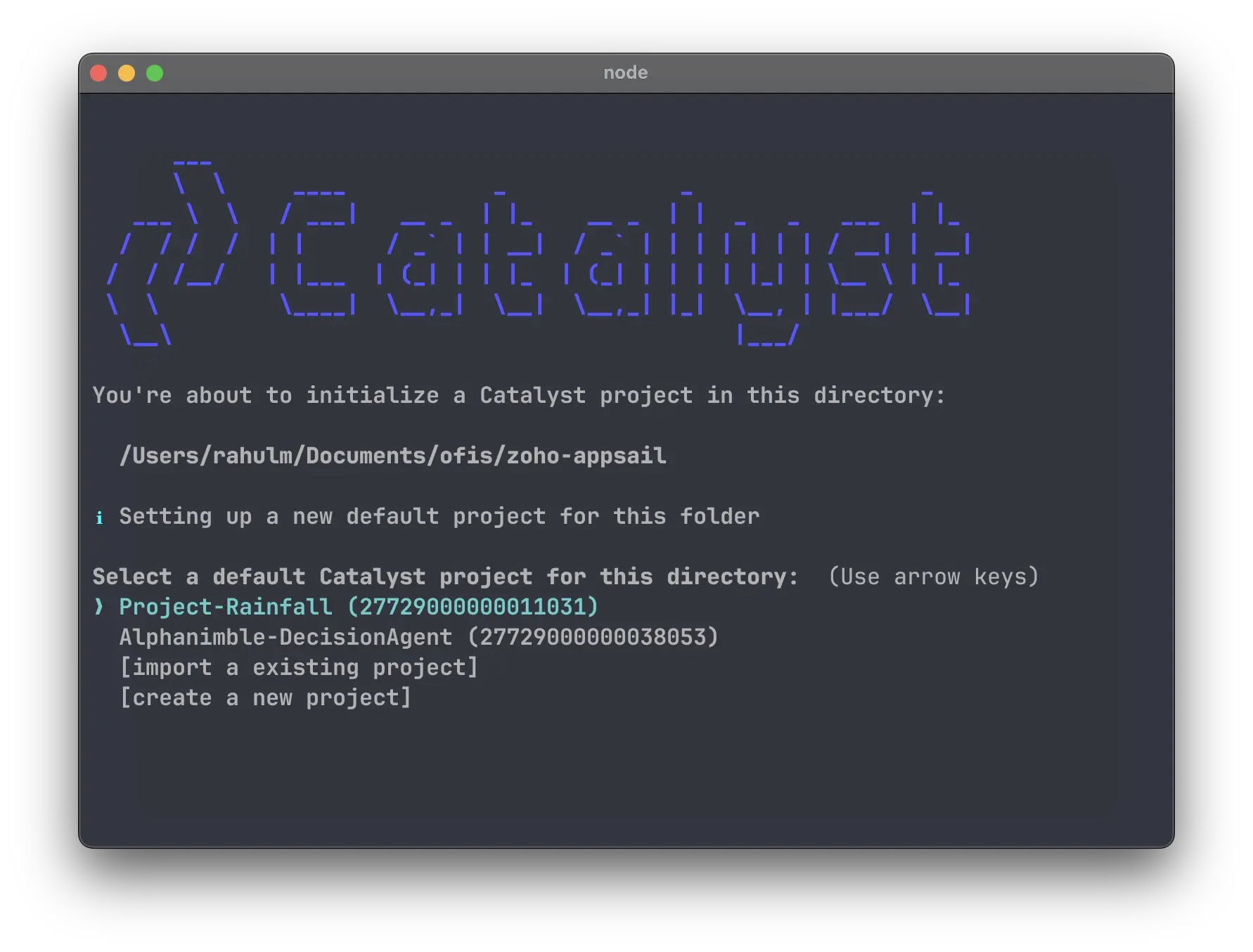 Selecting or creating a project from the list
2. Deployment Type: Select Docker Image as the deployment type.
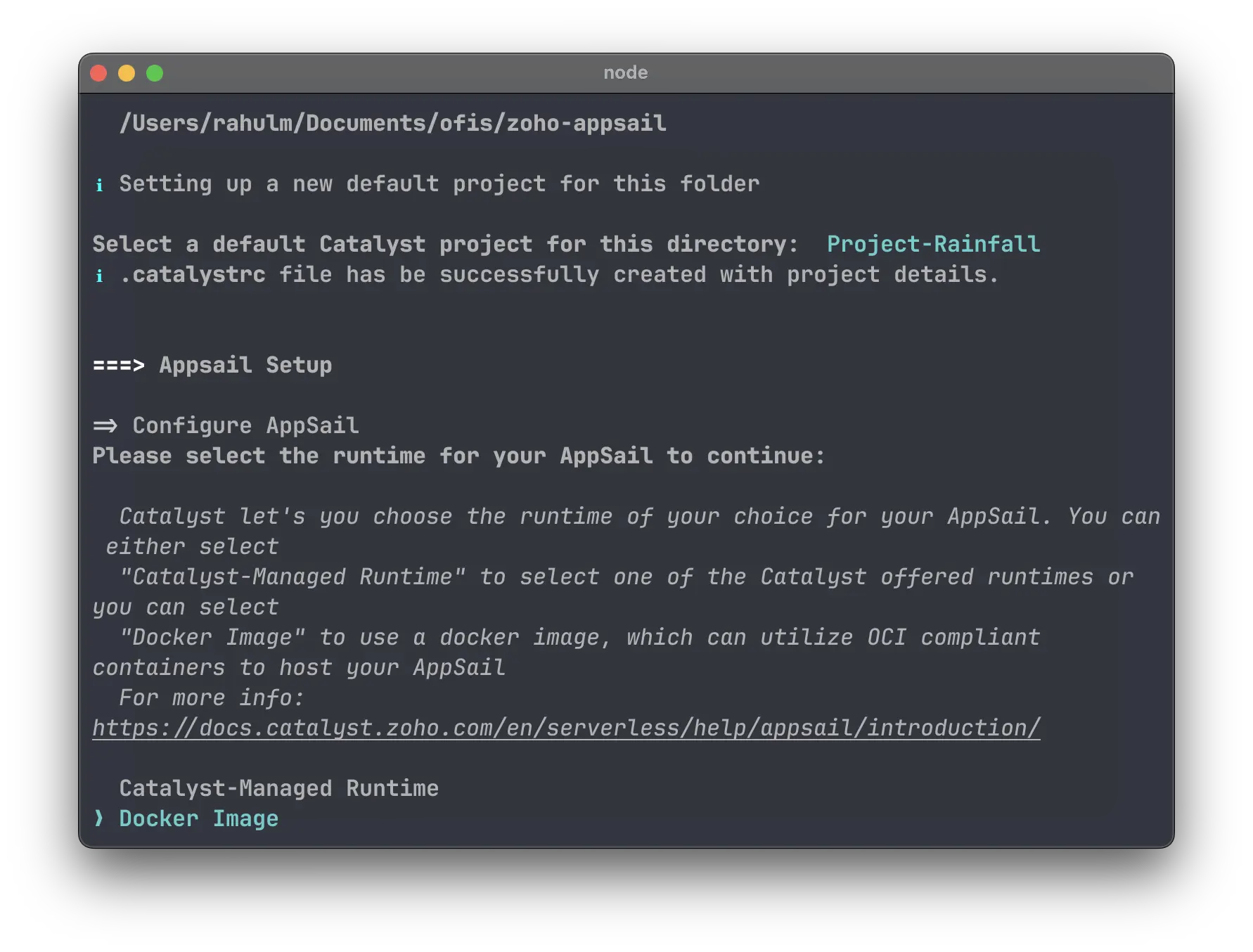 Choosing "Docker Image" as the deployment method
3. Source Selection: Choose Docker:// since the image is stored locally.
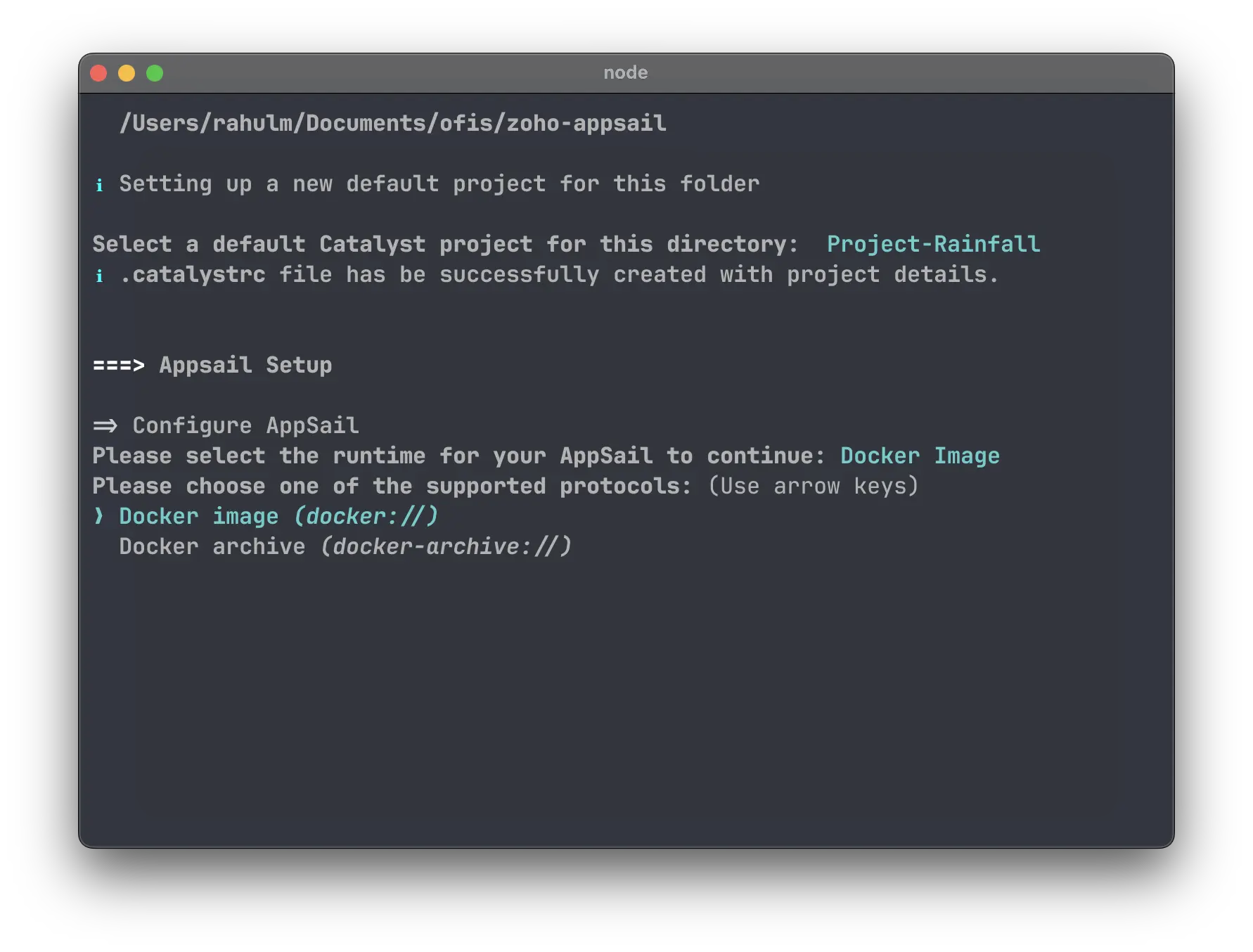 Selecting the Docker source
4. Select Image: Pick the test-deploy:latest image built earlier.
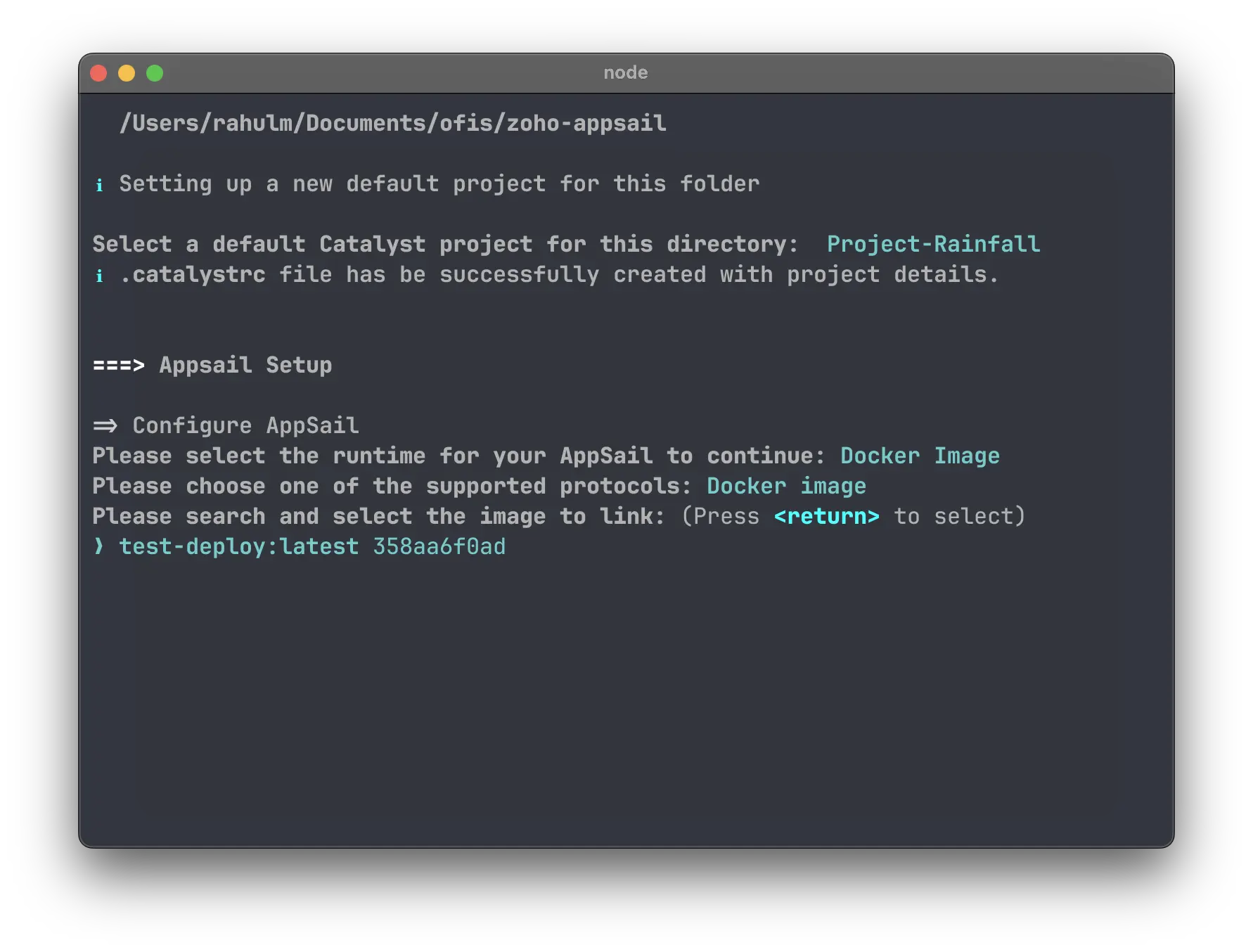 Selecting the local Docker image
5. Name Your Deployment: Assign a unique name to the deployment.
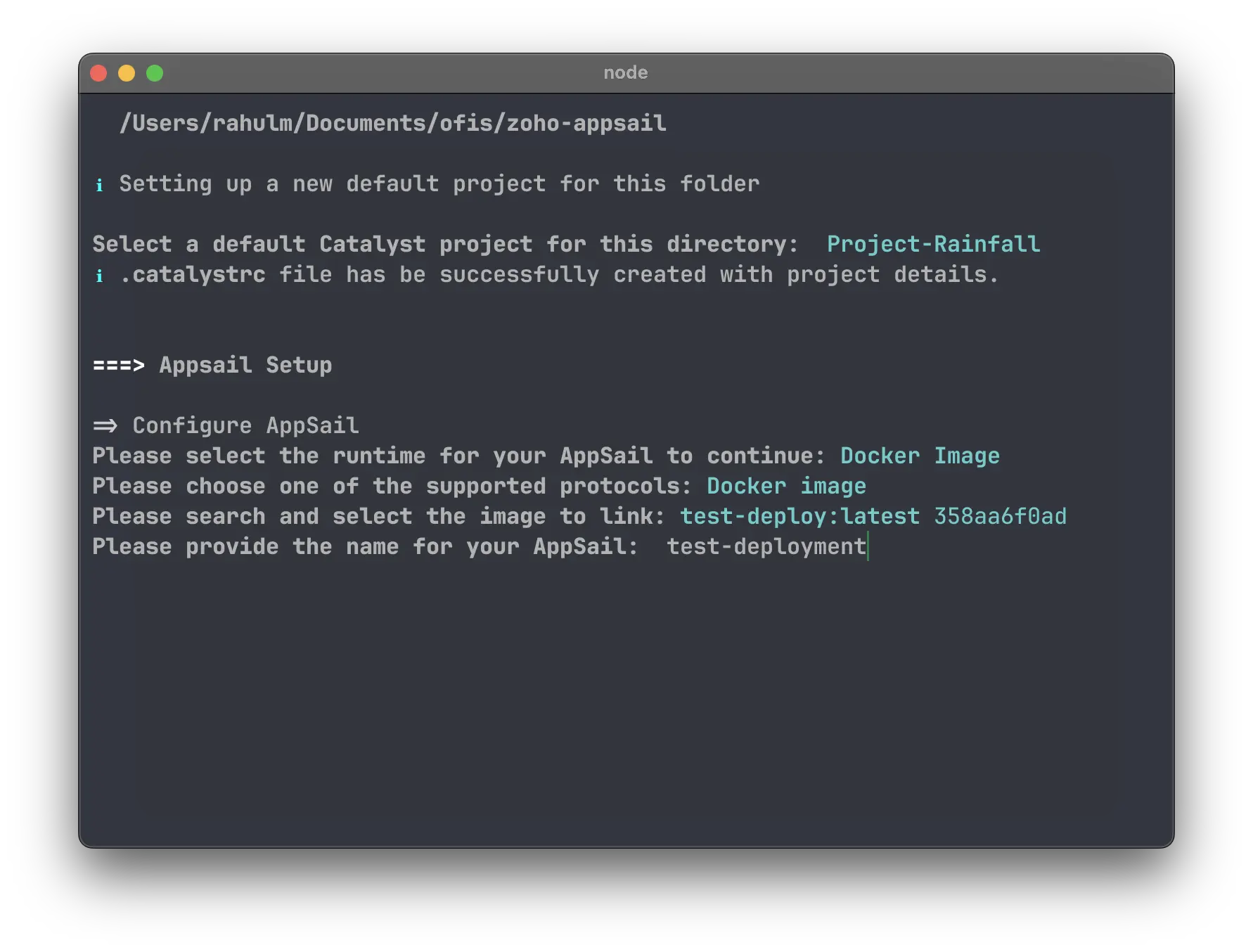 Naming the deployment
Once finished, this creates two files in the folder:
catalyst.json(project config).catalystrc(project ID mapping)
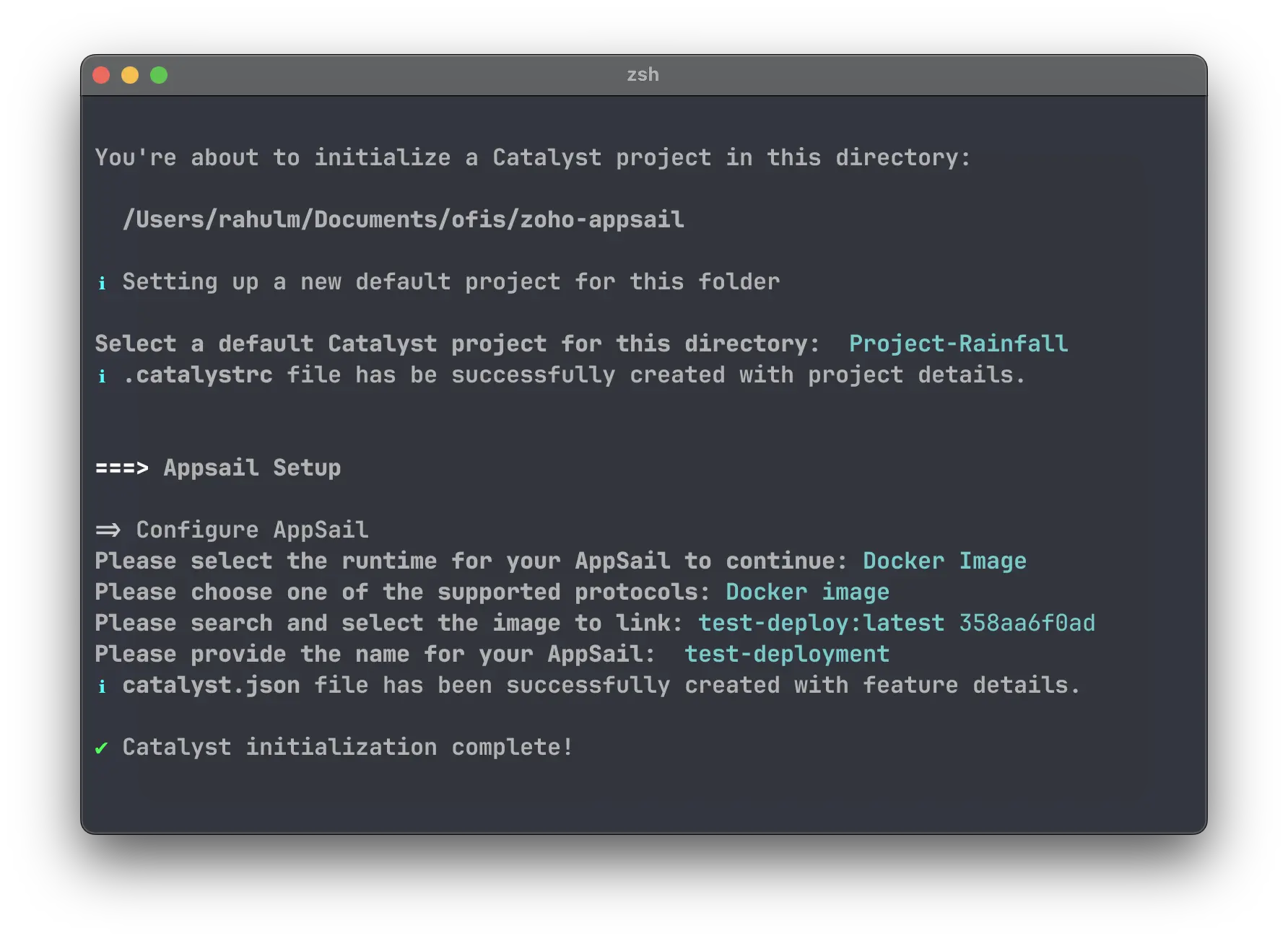 Initialization complete!
5. Deploying to the Cloud
To push the Docker image to the Cloud and go live, run:
catalyst deploy
The CLI will upload the image, provision the server, and return a Production URL (typically ending in .development.catalystserverless.com).
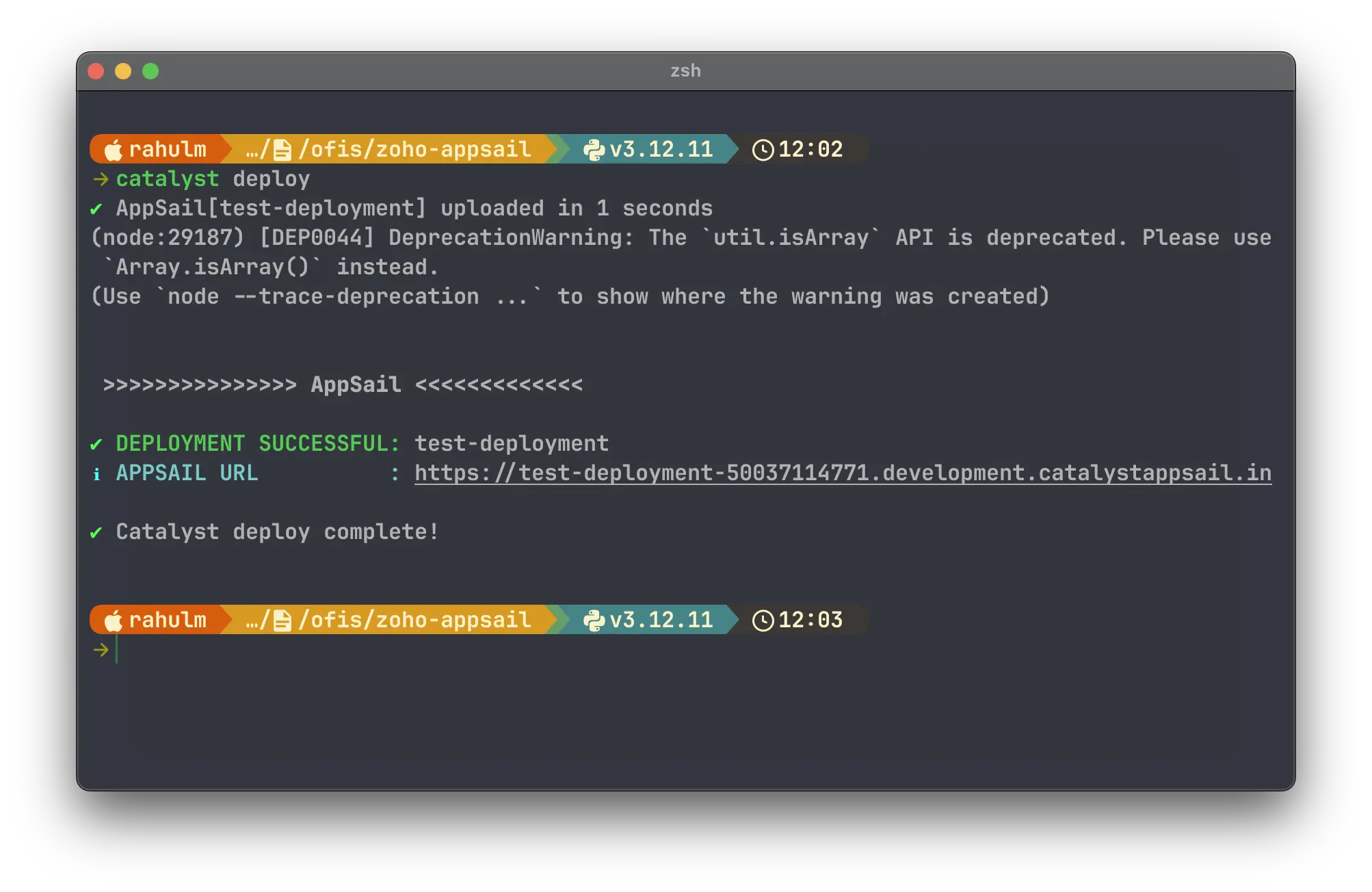 Deployment successful! Your app is now live.
6. Post-Deployment Configuration
Environment Variables
If the project uses API keys or secrets, do not hardcode them. You can set Environment Variables securely in the Zoho Catalyst Console under project settings.
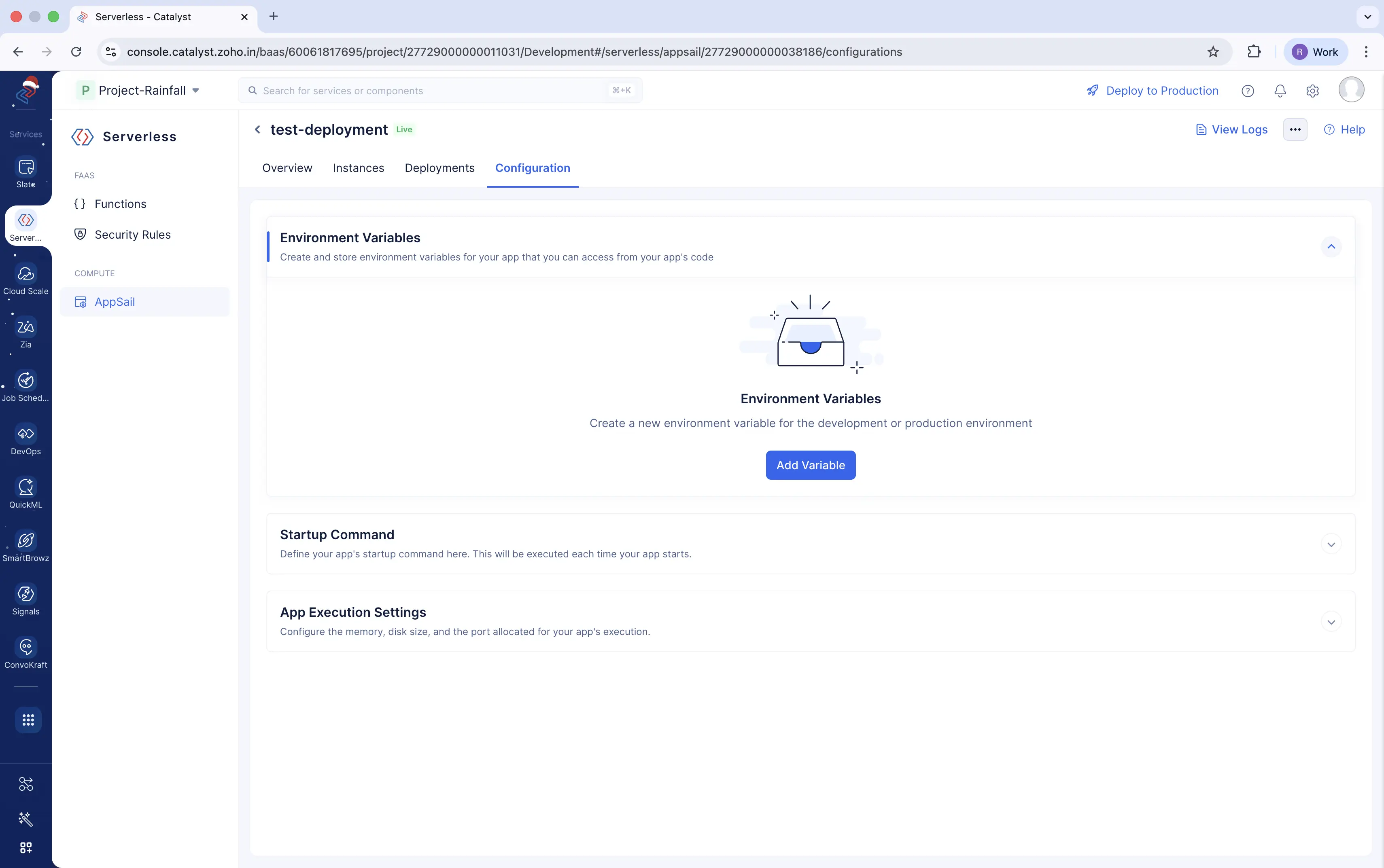 Setting up environment variables in the Catalyst Console
Viewing Logs
For debugging and monitoring, Catalyst provides a logs interface where you can track your application's activity.
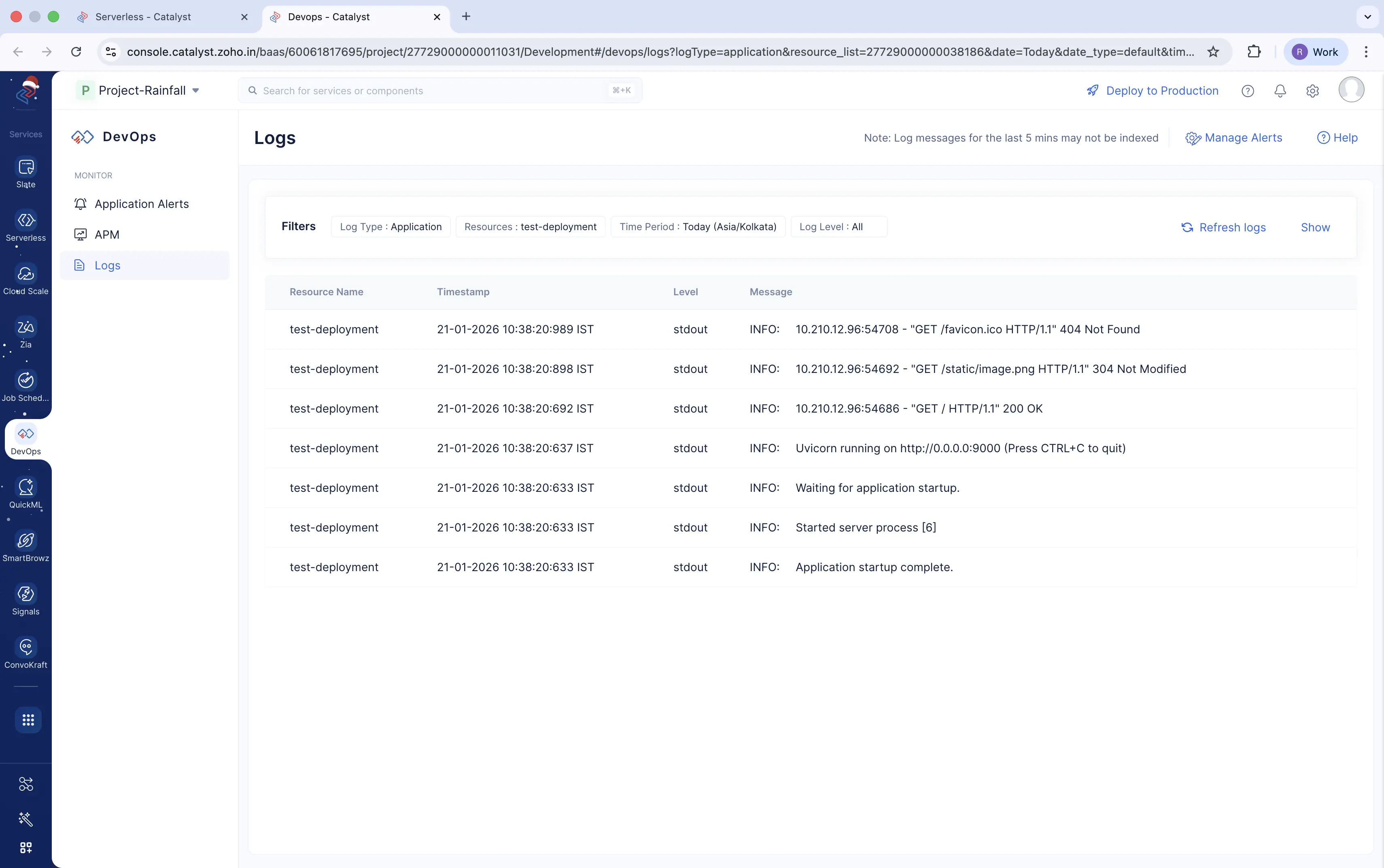 Monitoring your application logs
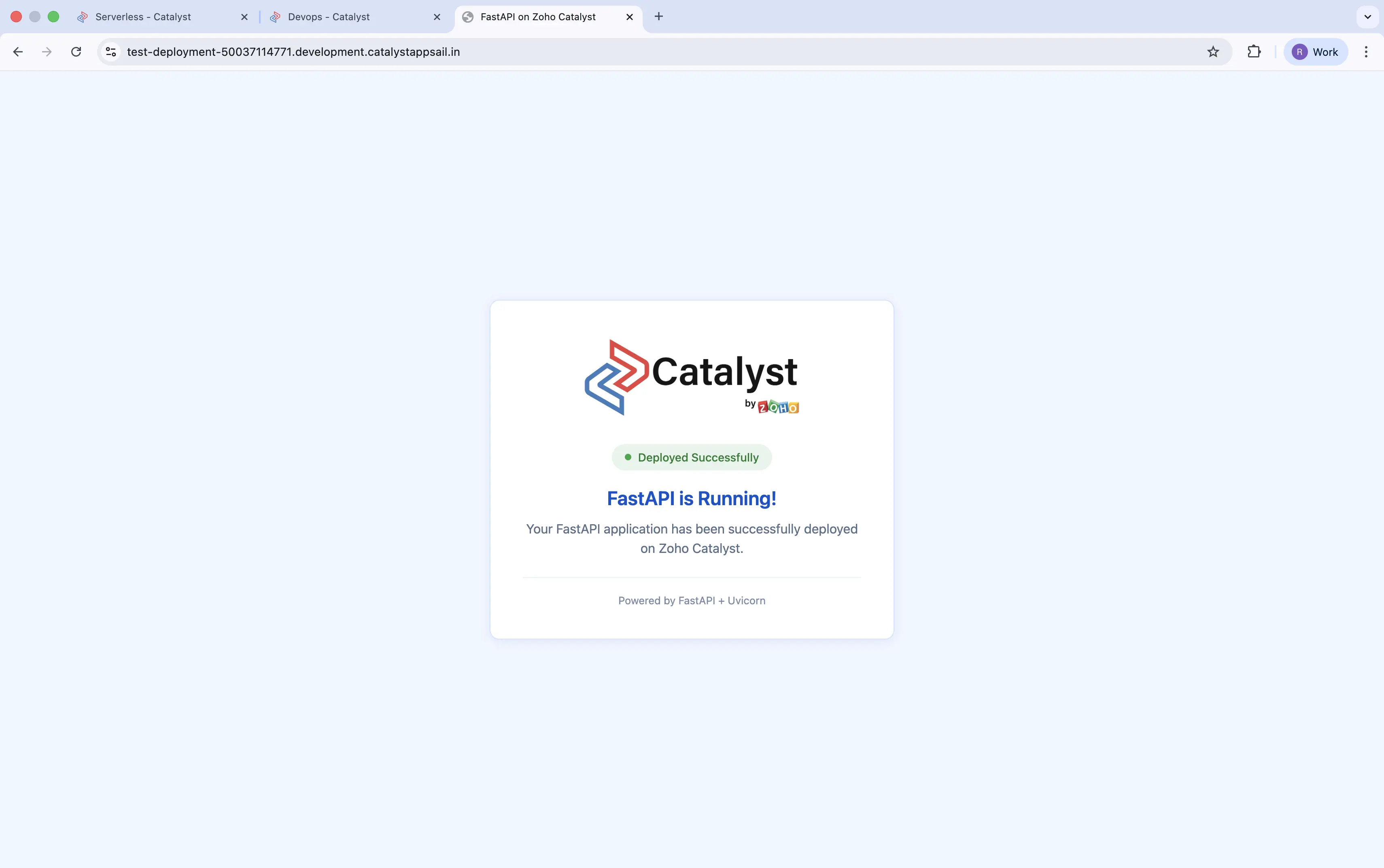 The deployed FastAPI application running on Zoho Catalyst
Key Takeaways
- 🚀 Platform Flags: Use the correct platform flag (
linux/amd64) when building Docker images on Mac (M1/M2/M3). - 🔌 Port Configuration: Always expose port 9000 for Catalyst AppSail.
- 🔒 Security: Never hardcode secrets; utilizes environment variables.
- 💰 Cost: Zoho's free tier with $250 credits is generous for testing and small projects.